

 Français
Your free Excel quote template to download for 2026
Download our free Excel quote template for 2026. A practical guide to customize it and understand when it's time to move to the next step.
For small businesses or e-commerce sellers just getting started, an Excel quote template is often the first reflex. It’s simple, reassuring, and above all, free. Everyone already knows the tool, which makes it a great starting point for structuring your sales proposals without having to invest right away.
Why use an Excel quote template in 2026

Even in the age of all-in-one software, let’s be realistic: Excel remains a staple for many freelancers and small businesses. Its great strength is its flexibility. You can create a document that fits your brand image perfectly, adjusting every cell, color, and formula without any constraints.
At the start of your business, this manual approach offers some very concrete advantages:
- Total control: You’re the only one in charge of the layout, the information included, and the overall structure.
- Zero cost: If you already have the Office suite, creating your quotes won’t cost you an extra cent.
- Immediate use: No need to learn a new tool. You’re on familiar ground.
Knowing the limits of the Excel template to plan ahead
That said, it’s also important to be clear-eyed about the drawbacks of this method, especially once your business starts taking off. For an e-commerce seller managing international sales via Shopify or Amazon, manually managing quotes can quickly turn into a nightmare.
The risk of human error is the main weak point. A broken formula, a bad copy-paste, incorrectly applied VAT… the consequences can be serious, both financially and legally. Not to mention the time you lose filling out each document one by one — precious time not spent growing your business.
In France, Excel is still massively used for management purposes, with a 28.3% adoption rate for accounting. The flip side? Errors linked to manual invoicing are estimated to fall between 20% and 25%.
Automation: a natural evolution to support your growth
Starting with an Excel template is an excellent strategy at first. Think of it as a first step, an ally to help you get going. But as your sales grow, administrative complexity grows exponentially. This is a real issue for online sellers, who have to juggle complex VAT rules like OSS/IOSS for European sales.
This reality hasn’t escaped accounting firms either, whose numbers have grown by 12% since 2015, which clearly shows the growing need for clean, reliable financial data. To dig deeper, you can take a look at these statistics on spreadsheet usage.
For a growing e-commerce seller, the question isn’t whether to switch to an automated solution, but when. Here’s a quick comparison to help you see things more clearly.
Quick comparison of quoting solutions
This table compares using an Excel template versus a dedicated solution like Bizyness for a growing e-commerce seller.
| Criteria | Excel Quote Template | Automated Solution (Bizyness) |
|---|---|---|
| Initial cost | None (if Office is already installed) | Monthly/annual subscription |
| Creation time | Several minutes per quote | A few seconds (automatic creation) |
| Risk of error | High (manual entry, formulas) | Very low (centralized calculations and data) |
| Legal compliance | Depends on your diligence | Automatic updates of tax rules |
| Quote tracking | Manual (hard to scale) | Centralized, with statuses and automatic reminders |
| Scalability | Limited, becomes a bottleneck | Built to handle large transaction volumes |
In short, the Excel template is perfect for launching your business at no cost. But as soon as managing quotes starts taking up too much of your time, or the risk of error worries you, it’s time to think about the next step.
That’s where platforms like Bizyness become essential. They automate the creation of quotes and invoices from your sales data, automatically applying the right tax rules. Your Excel template will have been your best ally to get started; a dedicated solution will be the key to supporting your growth without drowning in admin work.
Download your ready-to-use Excel quote template
Enough theory, it’s time to get practical. To save you precious time, we’ve put together an Excel quote template that you can download and use right away.
This template was designed with real-world use in mind, to meet the concrete needs of freelancers, tradespeople, and small businesses, especially in e-commerce. The idea is simple: give you a professional tool from day one, without having to reinvent the wheel.
What’s inside?
This isn’t just an empty spreadsheet. It’s a complete working base that already includes the essential elements for sending clear, compliant quotes.
- The key information already in place: You’ll find dedicated fields for your details, your SIREN number, and of course your client’s information too. No more risk of forgetting a mandatory mention.
- Calculations that do themselves: The subtotal before tax, VAT, any discounts, and the total including tax are calculated automatically. This puts an end to the small calculation errors that can hurt your credibility (or cost you money!).
- A clean, professional design: The layout is deliberately simple so your quote is readable and instills confidence at first glance.
Our goal is to give you a solid, functional base. But keep in mind that every cell remains 100% editable. You can, and should, adapt it to your business.
This template is an excellent starting point, but it doesn’t replace your own vigilance. Take a moment to check that the included legal mentions actually match your status. For example, a sole trader under the VAT exemption scheme has different obligations than a SASU that charges VAT.
How to use it
Nothing could be simpler. Download the file, open it with Excel (or compatible software like Google Sheets or LibreOffice Calc), and follow the customization tips we detail right after. You’ll be able to add your logo, adjust VAT rates, or even pre-fill your most common products and services.
For sole traders, we also have an even more targeted guide. Feel free to read our dedicated article for a free quote template for sole traders, which covers all the specifics of this status.
Click the link below to get your template. In just a few minutes, you’ll be ready to send your first professional quote.
[➡️ Download the Excel quote template now]
Once you have your Excel quote template in hand, the real work begins: turning it into something that reflects your business. It’s not just about adding your logo. The goal is to make this document smart, quick to fill in, and perfectly suited to the way you work.
In short, we’re going to turn this simple spreadsheet into a genuine sales assistant. If you don’t have Excel yet, don’t worry — there are ways to download Excel for free before you get started.
The process is simple: download the template, make it your own, and it’s ready to be used for all your future proposals.
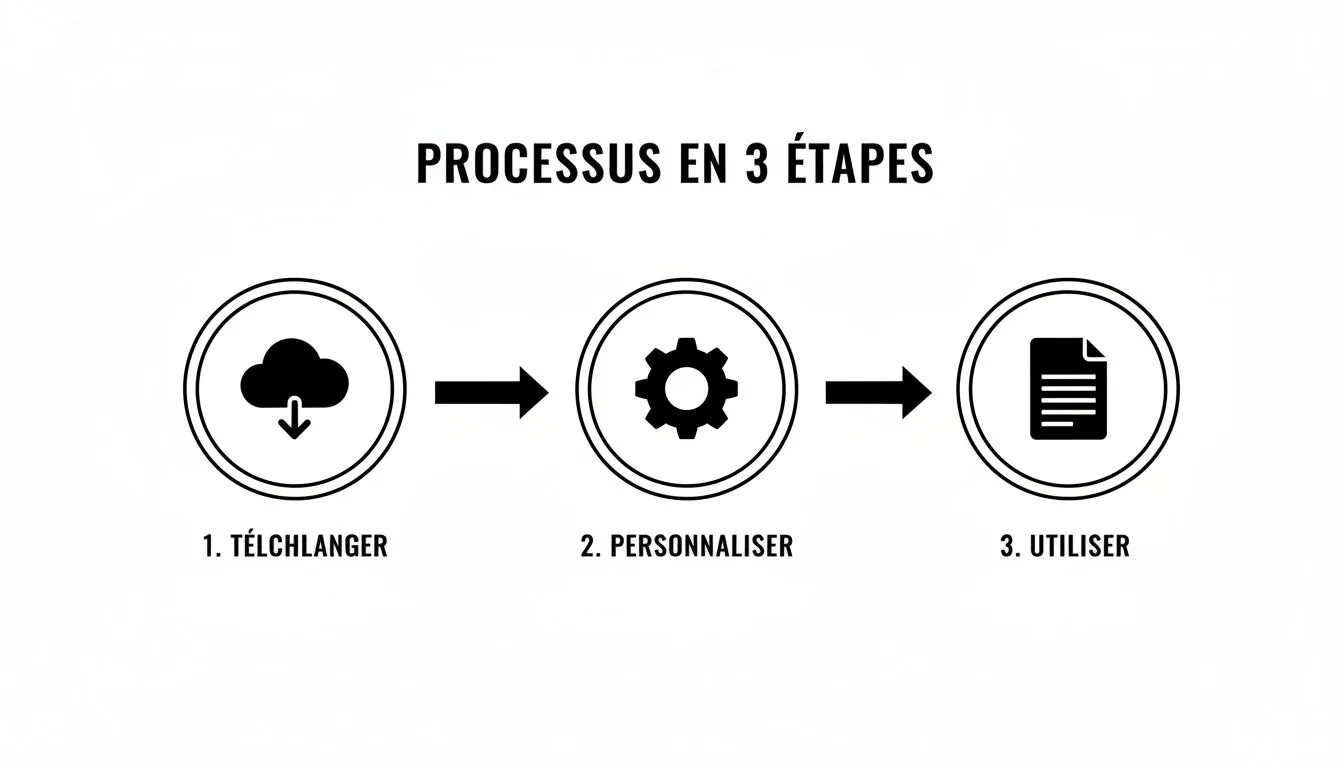
It’s really this customization phase that will make all the difference and save you precious time down the line.
Make the document your own: visual identity and legal information
First impressions matter. Your client should immediately know this quote comes from you. So let’s start with the header, the first thing they’ll see.
- Add your logo: In Excel, this is very simple. Go to the
Inserttab, clickIllustrationsthenPictures. Select your logo, and adjust its size so it fits neatly into the dedicated space. - Fill in your information: Take the time to replace the generic fields with your company name, address, phone number, email, and above all, your SIREN/SIRET number. These aren’t just details — they’re mandatory legal mentions.
Once this is done, you’ll never have to touch it again. Every quote you send will be immediately professional and recognizable, which is an excellent starting point for building trust.
Save time with a pre-configured product catalog
Here’s a game-changing tip if you often sell the same products or services: pre-fill your catalog. Instead of retyping everything each time, you’ll build a database directly in your Excel file.
Create a new tab, which you might name “Catalog.” List each product or service there with its description, unit price before tax, and the corresponding VAT rate. Then, in your quote template, the VLOOKUP function becomes your best friend. By entering a simple reference, all the associated information (description, price) will fill in automatically.
By preparing this catalog, creating a quote only takes a few seconds instead of several minutes. It’s a huge productivity gain and the best way to avoid pricing typos.
Adjust the calculation formulas (VAT, discounts) to your business
Excel’s magic lies in its formulas. Our template already includes basic calculations, but your reality might be different. It’s time to adapt them.
Are you a sole trader not subject to VAT?
If you benefit from the VAT exemption scheme, your quote needs to reflect that.
- Simply delete the columns and rows related to VAT.
- Check that the final total matches the sum of the amounts before tax.
- Above all, don’t forget to add the mandatory legal mention at the bottom of the page: “VAT not applicable, art. 293 B of the French Tax Code (CGI)”.
How do you apply a discount?
To offer a commercial discount, you can easily add a discount line just before the total. Let’s say a 10% discount.
- Calculate the subtotal of your product/service lines.
- Just below, create a new line named “10% commercial discount.”
- In the amount cell, the formula will be
=-(Subtotal * 0.10). The-sign ensures the amount is properly subtracted from the total.
Each of these adjustments turns a generic template into a powerful tool, tailored to your business. Every minute you invest now will save you dozens of minutes later.
Ensuring your quote is compliant: legal mentions you should never forget

Make no mistake: a quote is not just a simple sales proposal. The moment your client signs it, it becomes a binding contract. The slightest missing mandatory mention can weaken this agreement, or even render it void in the event of a dispute.
Even starting from an Excel quote template, the responsibility for its compliance rests entirely with you. This is actually the main pitfall of manual solutions: they have no automatic checks. A simple oversight or a slightly too-quick copy-paste can cost you dearly, with fines that can reach up to €1,500.
Who are the parties? Identifying both sides
The foundation of everything is knowing who is committing to what. Your quote must therefore clearly and unambiguously identify both you and your client.
Make sure the following information appears in black and white:
- On your side: Your company name (or your first and last name if you’re a sole proprietor), the address of your registered office, your phone number, and an email address.
- Your registration numbers: The SIREN/SIRET number is non-negotiable. If you’re liable for VAT, your intra-community VAT number is also essential.
- On the client’s side: Their name (or company name) and address. Note that for a business client, the billing address may differ from the delivery address.
Leaving out any of this information is a bit like signing a contract without a name on it. If something goes wrong, it becomes very hard to prove who committed to what, and to whom.
Detailing your offer: clarity above all
Once everyone is properly identified, you need to precisely describe what you’re offering. This is the heart of your quote, and clarity is your best weapon against misunderstandings. Each product or service should have its own detailed line.
For each line item, you absolutely must mention:
- The precise description of the service or product sold.
- The quantity (in units, hours, days…).
- The unit price before tax.
- The VAT rate that specifically applies to that line.
- The total amount before tax for the line.
This granular approach is crucial. If you invoice services with different VAT rates (for example, 20% for a service and 5.5% for a product), each rate must be explicitly stated. To go further on this point, our full guide on mandatory quote mentions covers every scenario.
This level of rigor becomes even more important with the arrival of mandatory e-invoicing in France, set to take effect on September 1, 2026. Think of an e-commerce seller on WooCommerce or Etsy managing international sales via Excel, juggling different VAT rates. The risk of error and non-compliance is enormous. This is where platforms like Bizyness, which connect directly to Shopify, Stripe, or PayPal, really prove their worth by automatically generating compliant documents — a real headache to manage on a spreadsheet.
Finally, never forget two details that protect your business: the quote’s issue date and its validity period (generally between 1 and 3 months). Without this deadline, a client could try to hold you to prices months later, even though your own costs may have gone up in the meantime. It’s a simple reflex to protect your margins.
Your Excel quote template served you well at the start. That’s often how it goes. But at some point, if your business grows, this trusty file starts showing its limits. Recognizing the warning signs is crucial to stop your own work tool from becoming a bottleneck.
The first warning sign is often human error. And it multiplies. A VAT formula accidentally overwritten, a copy-paste that’s a bit too quick and pulls in another client’s pricing, or a simple typo in the total… At first, it’s not a big deal. But these small errors end up costing you dearly, in time, in money, and above all, in credibility.
The signs of a tool that can’t keep up
Another telltale sign is the amount of time you spend on admin work. If you’re spending more time juggling quotes and invoices than developing your offer or talking with clients, the system has reached its breaking point. This non-billable admin time becomes a real bottleneck.
For those who sell online, the picture gets worse even faster. Take an e-commerce seller on Shopify or a marketplace seller on Amazon who starts selling internationally. It’s a guaranteed tax headache. Manually managing different VAT rates, OSS/IOSS rules, and foreign currencies in Excel is not only a huge waste of time, it’s also taking on enormous risk. By the way, if managing other administrative documents in Excel feels limiting, dedicated reporting and invoicing software can also be an interesting option for other tasks.
Switching to a dedicated solution isn’t an admission of failure. Quite the opposite: it’s a sign that your business is growing and becoming more professional.
Excel shows its biggest weakness when you need a clear, real-time view of your finances. It’s practically impossible to build reliable dashboards from it to track quote status, conversion rates, or projected revenue. The result: you’re flying blind, which is particularly dangerous for a growing business. Our article on the best invoicing software for sole traders explores the benefits of a specialized tool in more detail.
Switching to automation
The good news is that solutions like Bizyness were designed specifically to take over where Excel leaves off. They’re built to automate the entire sales cycle. In practice, an order placed on your Shopify store can turn into a compliant accounting entry without you having to lift a finger.
This shift to automation directly addresses the challenges faced by D2C brands, marketplace sellers, and SaaS software publishers. The time savings are immediate, but the real treasure is reliability and peace of mind on the tax front.
Even as AI gradually makes its way into our office tools, manual management remains a burden. By 2026, AIs like Claude might be able to generate forecast financial statements in Excel in just a few minutes. But for the 7.6 million e-commerce sellers managing multi-currency quotes on PrestaShop or Paddle, that doesn’t solve the underlying problem. Bizyness goes much further by automating the entire cycle, from quote to accounting export (FEC), thanks to its direct integrations with sales platforms and smart, country-by-country VAT management.
Ultimately, giving up your Excel quote template is a strategic decision. It means choosing to focus your energy on what really matters — your core business — while handing off the administrative complexity to an expert tool that safeguards your growth.
Frequently asked questions about managing quotes with Excel
Getting started with an Excel quote template is a good move. But you’ll quickly run into practical questions that can eat up a lot of time. To help you avoid common pitfalls and keep your admin management healthy, here are a few answers drawn from real-world experience.
How do you guarantee sequential quote numbering?
This is probably the biggest headache with Excel. The risk? Ending up with duplicates or gaps in your numbering, which can put you in a difficult spot during an audit. The simplest way to avoid this is to dedicate a tab to this task.
Create a simple sheet named “Tracking,” with one important cell. In this cell, you enter the number of your next quote, for example 2026-001. Then, in your template, simply link the quote number cell to this reference cell. After each new quote, all you have to do is go back to your “Tracking” tab and manually update the number for the next one (2026-002).
Of course, this manual technique isn’t foolproof. But trust me, it’s far more reliable than trying to remember the last number used, especially under pressure.
Quote numbering that isn’t continuous can be seen as an attempt to hide revenue. Even if it’s a simple mistake, it risks raising a flag with the tax authorities during an audit. Better to be careful.
Turning a quote into an invoice in a few seconds
Has a client signed? Great! Now you need to turn that quote into an invoice. This is something you’ll do hundreds of times. In Excel, the fastest way is to duplicate the quote tab. Right-click on the validated quote’s tab, choose “Move or Copy,” and make sure to check the “Create a copy” box.
On this new sheet, only a few adjustments remain:
- Replace the title “Quote” with “Invoice.”
- Give it a new invoice number, which must follow its own sequence, separate from that of your quotes.
- Update the date so it matches the day you issue the invoice.
- Remember to remove quote-specific mentions, such as “Approved” or the offer’s validity date.
How do you handle quotes in foreign currencies?
If you have international clients, managing different currencies is something you shouldn’t overlook. Above all, never type an exchange rate directly and hastily into your formulas. The trick is to isolate that rate in a dedicated cell.
For example, create a cell named “EUR/USD Rate” and enter the current day’s conversion rate there. Then, in your calculations, simply multiply your totals by the value in this cell. The advantage is huge: if the rate changes, you update it in a single place and your entire document recalculates automatically. It’s an excellent way to limit errors.
Ready to leave manual work behind? If you want a solution that handles numbering, invoice conversion, and currency management on its own, take a look at Bizyness. It’s a platform designed for online businesses that want to automate their management without the complexity of Excel. To learn more, visit https://www.bizyness.fr.
