

 Français
The complete guide to PayPal automatic payments for your e-commerce store
Learn how to set up PayPal automatic payments to manage subscriptions and grow your recurring revenue. A practical guide for online sellers.
PayPal automatic payments are much more than a simple feature. They’re a strategic lever for anyone looking to stabilize and grow their e-commerce revenue. By automating billing for subscriptions or services, you eliminate a significant manual workload while building much stronger customer loyalty.
Why automatic payments are crucial for your growth
For an online seller, revenue predictability is the name of the game. It’s what lets you plan, invest, and grow with confidence. Moving beyond the one-off sale model to build a base of recurring revenue changes everything. That’s where PayPal automatic payments come in: they’re not just a payment option, but a real engine for your financial stability.
In France, you simply can’t ignore PayPal. The platform is massively adopted and dominates the online payment landscape. We’re talking about 85% of payment service users who use it, far ahead of competitors like Apple Pay (20%) or Google Pay (15%). Doing without PayPal means voluntarily shutting the door on a huge share of the market. For those interested in the topic, some analyses even show the trend in PayPal’s active user numbers.
In short, integrating PayPal means offering your customers a smooth, familiar experience, especially when it comes to subscribing.

The different types of automatic payments
PayPal offers a range of tools for managing recurring payments. Each tool is designed for a specific need, and it’s essential to choose the one that matches your business model.
- Recurring payments (Subscriptions): The classic solution for anything with fixed, regular billing. Think monthly boxes, software (SaaS) subscriptions, or access to premium content. You set an amount and a frequency, and PayPal takes care of charging the customer at each due date.
- Pre-approved payments: This option is ideal when the amount billed isn’t always the same. It’s perfect for marketplaces or certain usage-based services. The customer gives their consent once to authorize future charges, which can vary in amount. You’ll find this system used by ride-hailing services or freelance platforms, for example.
- Installment plans (Pay in several installments): A great option for pricier products or services. It lets you split the payment into several fixed installments. It’s an excellent way to remove a purchase barrier and can really boost your e-commerce sales.
Each option has its own logic. Understanding them well will help you build offers that are much more relevant to your customers.
To help you see things more clearly, here’s a summary table.
Quick comparison of PayPal automatic payment solutions
An overview of the different payment mechanisms to help you choose the solution suited to your business model.
| Payment type | Ideal for… | Example use case | Key advantage |
|---|---|---|---|
| Subscriptions | Fixed-billing services (SaaS, monthly boxes, premium content) | A monthly coffee box at €19.90 | 100% predictable recurring revenue |
| Pre-approved payments | Marketplaces, consumption-based services (variable amounts) | A platform connecting clients with freelancers | Total flexibility on billed amounts |
| Installment plans | High-value products (electronics, furniture, training) | A laptop paid in 4 interest-free installments | Higher average order value and conversion |
This table highlights what makes each mechanism unique. Your choice will really depend on the nature of your offer and the relationship you want to build with your customers.
Real-world scenarios for each model
To make this more concrete, let’s look at some real use cases.
Imagine a Shopify store selling organic cosmetics. It could launch a monthly “beauty box”. With PayPal subscriptions, customers are charged automatically every month and receive their package without doing anything. It’s an excellent way to generate steady revenue and strengthen engagement.
Now let’s take a content creator on WooCommerce who wants to monetize a premium newsletter. They set up a PayPal subscription at €9.99/month. Readers sign up once, and their access stays active as long as payments go through smoothly. Simple and effective.
The key to success with automatic payments isn’t just technical — it’s strategic. It’s about turning a one-off transaction into a lasting relationship with your customer.
These examples show how PayPal automatic payments can fit into different strategies. They make life simpler for everyone: the customer no longer has to think about renewal, and you secure your income. It’s a virtuous cycle that limits drop-offs and fosters healthy, predictable growth.
Setting up a recurring payment plan directly in PayPal
Theory is nice, but nothing beats hands-on practice to really master PayPal automatic payments. Rather than drowning you in a list of features, let’s build a concrete payment plan together, step by step, directly from your PayPal Business dashboard. The idea is to truly understand the logic behind each option so you can then adapt it to your own business.
Setting up a subscription plan isn’t just a technical exercise. It’s the embodiment of your offer. Whether you’re selling software access, a monthly box, or a premium service, every setting has to be spot-on to avoid any nasty surprises for your future customers.
Starting the creation of your plan
It all starts, of course, in your PayPal Business account. Once logged in, you need to find the section dedicated to subscriptions. The interface was designed to be fairly straightforward and guides you through the first steps of defining your product or service.
From the main dashboard, look for options like “Manage subscriptions” or “Create plan”, usually found under the sales tools.
PayPal will first ask you to name your product and add a short description. This is what your customers will see at checkout, so be clear and direct. It’s the first building block for establishing trust.
Defining billing cycles and pricing
Now we get to the heart of the matter: the financial core of your offer. PayPal is surprisingly flexible and lets you structure your automatic payments in many ways to match your customers’ expectations.
Here are the key settings to master:
- Pricing type: You can choose between a fixed price (the classic €19.90 per month) or quantity-based pricing (for example, €5 per user).
- Billing cycle: This is how often charges occur. The usual choices are monthly, quarterly or annual, but nothing stops you from creating custom cycles if your model requires it.
- Number of cycles: Your subscription can have a set end date (a plan with 12 monthly payments, for example) or continue indefinitely until the customer cancels.
A little tip from experience: if you offer annual plans, throw in a discount. Collecting 12 months of revenue upfront secures your cash flow and drastically reduces the risk of churn. That easily justifies a small 10 to 20% discount. If you’re interested in this topic, our guide on recurring billing has more tips.
Never underestimate the impact of payment options on conversion. A customer torn between a monthly and an annual commitment will be much more tempted to go annual if they see a clear, immediate financial benefit.
Adding a trial period or setup fees
To win over new customers, trial periods are a powerful tool. PayPal makes it easy by letting you set up a free or discounted period. You define a duration (say, 14 free days), and once it ends, normal billing kicks in automatically.
Conversely, if your service requires some setup work upfront, you can add a setup fee. This is a one-time payment, charged at signup, very common in the SaaS world or for services that need custom configuration.
Customizing the payment experience
Now that the financial mechanics are in place, let’s think about the customer experience. PayPal lets you customize the checkout page. Remember to add your logo and adjust the colors to match your brand. It’s a small detail that builds trust and reinforces your professional image.
Don’t overlook the redirect URLs. This is a step that’s often forgotten but is nonetheless crucial:
- URL after a successful payment: Instead of the default PayPal page, redirect your new customer to a personalized thank-you page. Use it to give them next steps or a link to a getting-started guide.
- URL on cancellation: If a customer drops off along the way, don’t just let them go. Redirect them to a page where you can try to win them back, perhaps with an FAQ or a small special offer.
Once everything is ready, PayPal generates a subscription button for you. It’s a simple bit of HTML code to copy and paste onto your website, your sales page, or even into an email. Your customers just have to click to subscribe in a few seconds.
Integrating PayPal subscriptions on Shopify and WooCommerce
Your payment plan is ready in your PayPal Business account? Great. Now you need to connect it to your store so your customers can use it. This is the technical integration step, and fortunately, platforms like Shopify or WooCommerce make this much easier for us today.
The goal is to make subscribing so simple that the customer doesn’t hesitate. A few clicks, and it’s done. Behind the scenes, your system needs to be notified instantly of everything that happens. A good integration means less paperwork for you and a top-notch customer experience.
Setting up automatic payments on Shopify
On Shopify, everything runs through the app ecosystem. The basic step is linking your PayPal Business account to your store in the payment settings. This is a prerequisite.
But be careful, for real PayPal automatic payments, Shopify alone isn’t enough. You’ll need a specialized app from the App Store. Names like Recharge, Bold Subscriptions or Appstle are go-to references. They bridge Shopify and PayPal to create truly flexible subscription offers.
These apps handle the entire lifecycle:
- They let you create subscription products (the “monthly box” alongside the one-off purchase, for example).
- They provide a customer portal where your subscribers can manage their payments independently.
- They automate charges on the customer’s PayPal account.
What’s great about this approach is that you manage everything from your Shopify dashboard, even though PayPal handles the transactions. Everything is centralized.
Setting up subscriptions on WooCommerce
For WooCommerce users, the logic is a bit different, but the result is just as effective. The best solution is to combine two extensions: the official PayPal Payments and the very powerful WooCommerce Subscriptions.
The first connects your store to PayPal. The second adds all the intelligence of recurring payments to your products. Once both are installed and active, you can turn any product in your catalog into a subscription.
You set the price, the frequency (monthly, quarterly…), the duration, and you can even offer a free trial period. As soon as a customer subscribes, WooCommerce Subscriptions communicates with PayPal to create the corresponding automatic payment profile. It’s seamless.
This little diagram sums up the process well. You start from a well-thought-out plan and arrive at a smooth technical integration on the site.
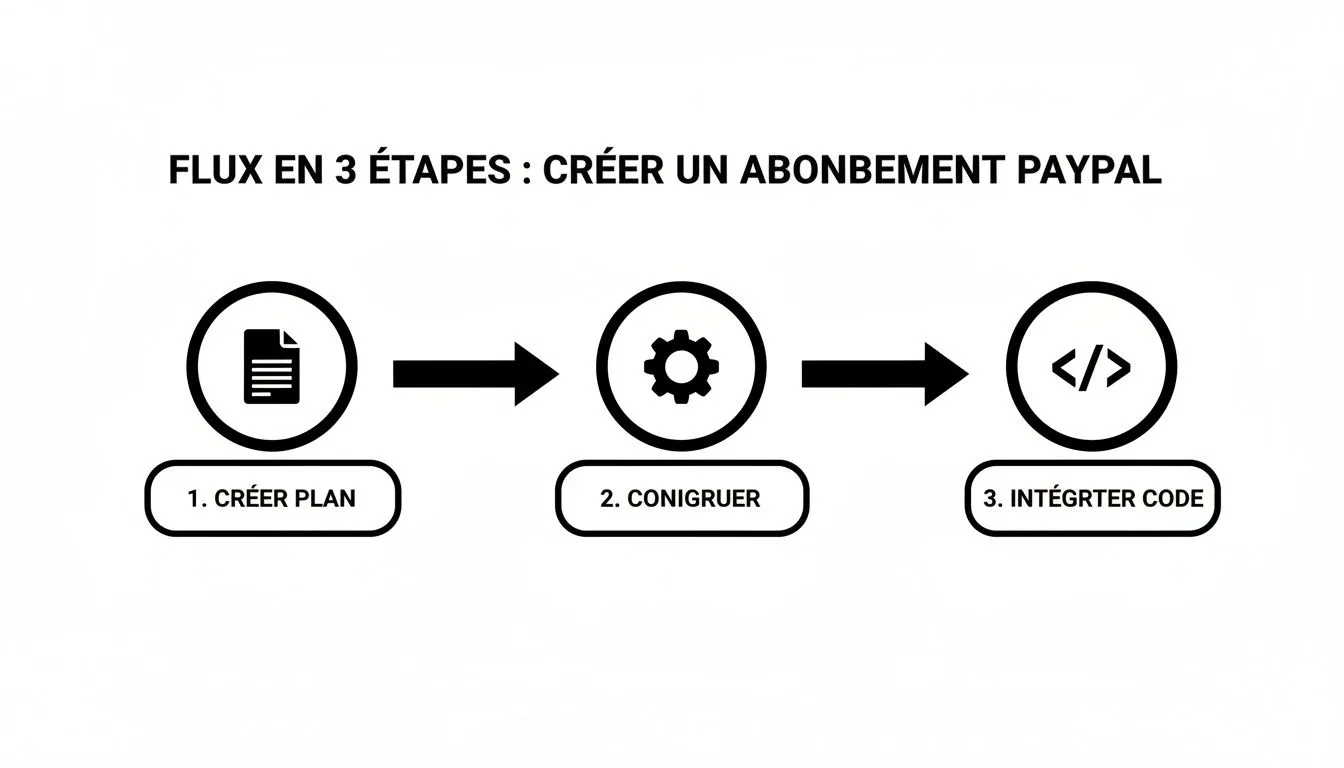
You can clearly see the three pillars here: a clear offer, rigorous back-office configuration, and a purchase journey that inspires trust.
The importance of webhooks and IPN notifications
Regardless of the platform, there’s one technical element you absolutely cannot overlook: Instant Payment Notifications (IPN) and webhooks. These are what let PayPal “talk” to your store in real time.
Think of webhooks as an alarm. As soon as an event happens on PayPal’s side — a successful payment, a failed one, a cancellation — PayPal sends a signal to a specific address on your site to notify it.
This communication is at the heart of automation. Without it, you’d be stuck checking everything by hand.
- Payment successful? Your store updates the order and extends the customer’s access.
- Payment failed? The system knows and can trigger automatic email reminders.
- Subscription cancelled? Access is cut off cleanly at the end of the already-paid period.
Taking the time to configure these notifications ensures your subscription business runs on its own. On WooCommerce, for example, the PayPal Payments extension gives you an IPN URL. Just copy and paste it into your PayPal Business account settings, and you’re all set.
This integration is all the more crucial since PayPal is second nature to many French consumers. Skipping it means voluntarily ignoring a significant share of customers who prefer this payment method for their recurring purchases. To get a sense of how much weight e-wallets carry in France, take a look at this very interesting study from the Banque de France.
Handling the unexpected like a pro: refunds, disputes and cancellations
Every online seller dreams of every payment going through without a hitch. But let’s be honest, the reality on the ground is often more nuanced. Managing automatic payments via PayPal doesn’t stop once the transaction is validated. The real test is knowing how to navigate the sometimes murky waters of the unexpected: cancellations, refund requests, and the most dreaded of all, disputes and chargebacks.
If you’re not prepared, these situations can quickly become a headache. They don’t just eat into your cash flow; they can also tarnish your seller account’s reputation with PayPal. The key? A calm, structured, and thoroughly professional approach.
Suspension or cancellation: the nuance that changes everything
When a customer decides to end their subscription, they generally have two options: pause it or stop it entirely. For your internal management and accounting, this distinction is absolutely fundamental.
-
Suspending a subscription: Think of it as a simple pause. The customer’s payment profile remains active in PayPal’s systems, but charges are stopped, either for a duration you define or until you reactivate it manually. It’s an excellent option to offer if a customer just needs a break without wanting to leave you altogether.
-
Cancelling a subscription: This is a definitive break. The automatic payment profile is closed for good. If that customer wants to come back one day, they’ll have to start from scratch and subscribe again, like any new customer.
From an accounting perspective, the difference is huge. A suspension keeps the customer in your active records (even if they’re not generating revenue), while a cancellation moves them straight into the lost-customer column (the dreaded “churn”).
Refunds: the art of handling a request methodically
A customer contacts you for a refund. It’s a classic scenario. How you react can turn a potentially negative customer experience into proof of your professionalism.
Let’s take a concrete example: a customer subscribes to your SaaS software for €49/month. After 10 days, they realize the tool doesn’t fit their needs and ask you for a refund.
Rather than answering with a simple “yes” or “no”, think in terms of prorating. Calculate the value of the 10 days they were able to use the service and offer to refund the difference. It’s a fair approach for everyone that shows you’re a reasonable seller. Take the time to clearly explain the calculation; transparency is the foundation of trust.
On the practical side, the refund is issued directly from the relevant transaction in your PayPal interface. Be sure to document each step; it’s essential for keeping your accounting spotless.
Transparency is your best ally. Explaining to the customer why you’re handling things a certain way, whether it’s a partial refund or a cancellation, defuses 90% of potential conflicts.
Dealing with a dispute or chargeback
The “chargeback” is clearly the trickiest scenario. This is when the customer doesn’t even bother contacting you and goes straight to their bank or PayPal to dispute a payment. The most common reasons? “Item not received” or “unauthorized transaction”.
Faced with a dispute, responsiveness is your best weapon. PayPal will immediately freeze the funds in question and ask you to provide evidence. This is exactly when the rigor of your administrative record-keeping pays off.
Your defense checklist for a chargeback
-
Respond without delay: Never leave a dispute pending in PayPal’s Resolution Center. Time works against you.
-
Proof of delivery (a tracking number, a confirmation email).
-
All the communications you’ve had with the customer (emails, support tickets).
-
A clear description of the product or service they subscribed to.
-
The terms and conditions of sale the customer accepted at purchase.
-
Stay factual: Present your arguments clearly, concisely, and professionally. Leave emotion out of it.
Watch out, too many chargebacks can genuinely put your PayPal account at risk. That’s why it’s vital to have solid processes upstream: flawless product descriptions and proactive customer service to avoid getting to that point. See every dispute, even ones you win, as a warning sign. It’s a golden opportunity to identify friction in your customer journey and fix it.
Syncing your PayPal accounting with Bizyness to save time
Collecting recurring payments is great. But the real battle is won on the accounting front. Every subscription, every PayPal fee, every refund… all of it generates an accounting entry. If you don’t automate this, you’ll quickly find yourself with a full-time job that’s as tedious as it is risky.
That’s where accounting automation completely changes the game. The goal is no longer just to receive money, but to turn this sometimes chaotic flow of PayPal transactions into clean, accurate, hassle-free bookkeeping.
No more CSV exports and manual entry
We all know the “old-school” method: export PayPal transaction reports, open them in a spreadsheet, then start the long sorting process. You have to isolate payments, separate out fees, calculate VAT for each line… a real chore to hand off to your accountant.
Take the concrete example of a Shopify store handling dozens of PayPal automatic payments per day. Each transaction is a mini financial puzzle:
- The gross order amount.
- The fixed and variable fees PayPal charges.
- The VAT rate, which can vary depending on the customer’s country.
Trying to reconcile all of this manually is a recipe for oversights and errors. A solution like Bizyness connects directly to your PayPal account and your store, and every sale is instantly turned into a clean, accurate accounting entry.
The best accounting is the kind you forget about. The goal is to make the whole process invisible so you can focus on growing your business, not on bookkeeping.
Smart handling of VAT and fees
VAT is a real headache, especially when selling internationally. The rules change from country to country, and schemes like OSS/IOSS add yet another layer of complexity.
Bizyness handles all of that for you. The platform analyzes each transaction and applies the correct VAT rate based on the order’s destination country. Whether a sale is for France or Germany, the invoice is always compliant.
And what about PayPal fees? Often buried in the noise, they’re automatically identified and recorded as an expense. This gives you a clear, precise view of your actual profitability on each sale, without having to comb through your statements. Discover how good accounting can help structure your business.
How automation handles complex scenarios
This is where automation with Bizyness really shows its power: handling the complex situations that come hand in hand with PayPal automatic payments.
- Partial or full refunds: A customer requests a refund? Bizyness creates the credit note and adjusts the accounting entries without you having to lift a finger.
- Currency conversion: You sell in dollars but keep your accounts in euros? The tool handles the conversion, records the exchange gain or loss, and keeps your reports consistent.
- Bank reconciliation: The platform matches the transfers you receive from PayPal into your business account with the sales recorded in your books, which massively simplifies reconciliation.
This advanced approach turns your accounting from a reactive chore into a real management tool. You get a real-time financial view, which helps you make better decisions.
Did you know that direct debits in France already accounted for 16.7% of transactions in 2022? This trend, driven by subscriptions, generates a huge volume of data that only automation can handle. By connecting Bizyness to PayPal, you turn this flow into a strategic advantage: transactions are categorized, tax rules applied, and your filings prepared reliably.
Ultimately, syncing your PayPal accounting with a tool like Bizyness doesn’t just save you time. It brings peace of mind: clean, compliant bookkeeping ready for your accountant. That frees you up to focus on what really matters: growing your business.
Your questions about recurring PayPal payments, answered
When you get into PayPal automatic payments, you quickly run into very concrete questions. That’s normal. Whether you’re preparing your first subscription offer or looking to refine a system already in place, questions inevitably come up.
Here, we’ll get straight to the point and answer the most common questions I see from online sellers and creators. The goal is to give you what you need to manage your recurring revenue with peace of mind.
Specifically, what are the fees for subscriptions?
This is often the first concern, and the answer is fairly simple: PayPal doesn’t charge you more just because a payment is recurring. The fees for an automatic payment are identical to those for a standard transaction for a good or service.
The fee is split into two parts:
- A percentage of the total transaction amount.
- A fixed fee for each payment.
Be careful, these figures vary depending on your country and sales volume. I strongly recommend checking the official PayPal Business pricing grid for your region to get exact amounts. It’s a detail that can quickly throw off your margin calculations if overlooked.
My advice: build these fees into your business plan from the start. For a small subscription, say €5, the fixed fee can eat up a significant share of your revenue. Tools like Bizyness are perfect for this — they isolate and track these fees automatically, keeping your books spot-on.
How can a customer easily stop their subscription?
Ease of cancellation is a real sign of trust. Nobody likes feeling trapped. If the process to unsubscribe is a headache, you risk frustrating a customer and damaging your reputation.
For a customer, there are two possible routes to end a subscription.
The first is directly through their PayPal account. They log in, go to the “Wallet” section, then click “Automatic payments”. There, they’ll see a list of all their active subscriptions and can cancel the relevant one in a few clicks. This is the default method PayPal offers.
But, between us, the best solution for a top-notch customer experience is to let them cancel directly from their customer area on your site. It’s much more professional. It saves them from having to dig through their PayPal account and gives them a sense of full control.
What happens if an automatic payment fails?
Payment failures happen all the time. An expired card, insufficient funds… there’s no shortage of reasons. Fortunately, PayPal has planned for this with an automatic retry system. If a charge doesn’t go through, PayPal will try again, typically after 5 days.
You can actually customize these retry rules in your PayPal Business account’s advanced settings. If it still doesn’t work after all the attempts, the subscription is automatically suspended.
To handle this like a pro, you absolutely need to enable IPN (Instant Payment Notification) notifications. This is what lets your system get alerted in real time to each failure. You can then trigger an automatic email gently inviting your customer to update their payment information.
Can you modify a subscription that’s already active?
This is an essential question. Can you change the amount or frequency of a subscription that’s already running? The answer is no. For obvious reasons of security and consent, PayPal will never let you modify the terms of a payment agreement once it’s been approved by the customer.
So how do you handle it if a customer wants to switch from a monthly to an annual plan, or simply upgrade? The process is always the same:
- First, cancel the current subscription.
- Then, invite the customer to sign up for the new plan.
Your role is to make this process as smooth as possible. A clear email, a well-designed page explaining the steps… that’s the key to not losing your customer along the way.
Ready to make managing your recurring revenue effortless? With Bizyness, you connect your PayPal account and that’s it. The platform takes care of generating your invoices, handling VAT, and preparing your books without you having to lift a finger. Discover how Bizyness can save you hours every month.
