

 Français
Exporting e-commerce data to CSV without the headache
Learn how to export your Shopify, Amazon, and other data to CSV for flawless accounting. A practical guide to avoiding common mistakes.

When we talk about exporting to CSV, what does that actually mean? It’s simply the process of saving your sales data (orders, customers, transactions) into a universal text file. Think of it as the essential first step in turning raw information from platforms like Shopify or Amazon into something genuinely useful for your accounting.
Why CSV export is a strategic tool for online sellers

Far from being a simple technical manipulation, exporting data to CSV has become an essential habit for running an e-commerce business well. Every day I see sellers juggling data from Shopify, Amazon, or Stripe. The problem? Each platform has its own format, its own column headers… a real puzzle to piece together every month.
This is exactly where CSV export becomes your best ally. It acts as a universal translator, a reliable bridge between all your sales channels and your management tools.
Turning data into decisions
The end goal is simple: move from a pile of raw data to a clear, actionable view. A good, well-prepared CSV export paves the way for you to:
- Ensure error-free accounting: giving your accountant a clean, ready-to-import file is the foundation of a smooth working relationship.
- Guarantee tax compliance: managing VAT, especially with international sales and one-stop shops (OSS/IOSS), becomes much simpler.
- Save precious time: no more manual entry, which is not only a source of stress but also of costly mistakes.
This need is all the more pressing as online commerce keeps growing. In 2026, France set a record with 125,700 exporting companies, growth driven in large part by online sellers. For them, knowing how to export to CSV is vital for correctly declaring sales and staying compliant with French tax requirements. You can find more details on this trend on the French Ministry for Europe and Foreign Affairs website.
The power of automation
The real gain happens at the next level: automation. Rather than downloading, cleaning, and formatting your files by hand every month, imagine a solution that does all of that for you. That’s where tools like Bizyness come in.
By connecting directly to your platforms, an automation tool doesn’t just download the data. It retrieves it, interprets it, and generates the accounting entries without you having to lift a finger. That’s the end of manual export headaches.
This approach provides a concrete answer to sellers’ everyday challenges, such as managing sales across multiple channels, by relying on the power of an intelligent, automated CSV process.
Getting your CSV exports from sales platforms
To get your accounting off to a good start, everything begins at the source: your sales platforms. Whether you use Shopify, WooCommerce, or Amazon, each one offers a feature to export your data to CSV. The goal isn’t just to click “download,” but to know exactly which options to select to get a clean, usable file.
Let’s take a very concrete example: preparing your monthly VAT return. You need the full list of transactions for the past month. On Shopify, for instance, the path is fairly simple. Just go to the “Orders” section, then look for the “Export” button.
That’s where the magic happens. A small window opens, and it’s your turn to choose. You can export only the orders currently shown, all your orders, or — what interests us here — orders over a specific date range.
Exporting orders from Shopify
For our VAT return, you’ll need to select the date range covering last month. But watch out: one detail makes all the difference. If you need the breakdown of payments, fees, and taxes, choose to export the “Payment history” instead. A simple order export won’t give you that level of granularity.
Shopify’s export interface is fairly intuitive.
You can clearly see the options for filtering by date and choosing the CSV file type, letting you tailor the export to your needs.
What about other platforms?
The principle is the same elsewhere, even if the menus and labels differ slightly. The key is not to rush.
- On Amazon Seller Central: as an FBA seller in Europe, go to “Reports,” then “Payments.” This is where you’ll find detailed transaction reports broken down by settlement period. They include everything: sales, Amazon fees, shipping costs, and VAT collected.
- On WooCommerce: the built-in export tool is fairly limited. My advice is to invest in a dedicated extension like WooCommerce Customer / Order / Coupon Export. It gives you full control to select specific fields, filter by order status (“Completed,” for example), or by date.
A veteran’s tip: never just settle for the default export. Always take a minute to explore the filters. Simply exporting only “Completed” orders alone can save you hours by avoiding having to deal with cancelled or pending orders.
To go further in optimizing your store, mastering e-commerce data extraction is fundamental. Knowing how to navigate these interfaces is what ensures you build your accounting on solid foundations.
Once you’ve mastered this step, you’ll be able to extract your raw data with total confidence. Whether it’s for a quick analysis, for your accountant, or for importing your figures into a tool like Bizyness, everything starts with a good export. The precision of this first step determines how smooth everything else will be.
Cleaning and structuring your CSV file for accounting
There you go, you’ve managed to export your sales data to CSV. Well done! But don’t celebrate too soon. The raw file you just downloaded from Shopify or Amazon is rarely usable as-is. It’s a bit like receiving all the ingredients for a complex recipe in a jumble: everything’s there, but nothing’s ready to be cooked yet.
This cleaning and formatting step is therefore crucial. It’s what will turn this somewhat chaotic file into a clear document that your accounting software or accountant can work with without tearing their hair out. Skip this preparation, and you’re exposing yourself to hours of manual corrections and, worse, mistakes that can end up costing you.
The process for getting this base file is fairly simple, as this visual shows.

Each click brings you closer to your data, but the real challenge starts now: knowing what to do with it.
Fixing encoding and delimiter issues
We’ve all been there: you open a CSV file and see “é” instead of “é,” or strange symbols instead of the ”€” sign. This is a classic encoding issue. Your platform exports data in UTF-8 (the standard on the web), but your spreadsheet software, especially older versions of Excel, tries to read it in a different format and displays garbage.
Fortunately, the fix is simple. Instead of double-clicking the file to open it:
- Go to the Data tab in Excel, then click From Text/CSV.
- In the import window, look for the “File Origin” dropdown menu.
- Select the option 65001: Unicode (UTF-8). And there you go, your special characters should now display correctly.
The other classic pitfall is the delimiter. This is the small character that indicates where a column starts and ends. If all your data is crammed into the first column, the delimiter is wrong. In France, the semicolon (;) is often used, while many systems export with the comma (,). In the same import window, you can tell Excel which separator to use.
Field mapping, the cornerstone of your accounting
Once these technical issues are sorted, we move on to the heart of the matter: field mapping. Behind this somewhat technical term lies a simple idea: matching the column names in your export with the ones expected by your accountant or software.
For example, Shopify might name the order total column “Total,” while your accounting tool needs a distinctly named field like “Amount incl. VAT.” It’s up to you to rename or reorganize the columns so that everything matches. This can seem tedious, but it’s essential to make sure your figures land in the right place.
To help you understand the importance of this step, here’s a table showing how to match the fields of a Shopify order export with standard accounting fields.
Mapping common Shopify fields to an accounting export
| Field in the Shopify export | Meaning | Corresponding accounting field | Example value |
|---|---|---|---|
| Name | Order number | Document/invoice number | #1001 |
| Paid at | Order payment date | Entry date | 2023-10-26 14:30:15 +0200 |
| Subtotal | Amount excluding taxes and shipping | Amount excl. VAT | 83.33 |
| Shipping | Shipping fees charged to the customer | Shipping fees (product) | 5.00 |
| Taxes | Amount of VAT collected | VAT amount | 16.67 |
| Total | Total amount paid by the customer | Amount incl. VAT | 105.00 |
| Currency | Transaction currency | Currency | EUR |
This table is just an example, but it illustrates well the “translation” work involved. Without this careful mapping, you risk importing amounts into the wrong accounts.
Imagine handing your accountant a table where the pre-tax price is in the “Total” column. The consequences for your VAT returns could be disastrous. Careful mapping ensures every figure ends up exactly where it belongs.
Automating to save time and avoid mistakes
Doing all this by hand isn’t just time-consuming, it’s also a source of errors. Studies show that manual data entry can contain up to 25% errors in some sectors. The best approach is therefore to eliminate these manual tasks entirely.
This is where solutions like Bizyness come in. By connecting directly to your sales platforms (Stripe, PayPal, Shopify…), Bizyness retrieves the data at the source, interprets it, and automatically handles all this mapping work. No more encoding issues, delimiters, or renaming columns. The software turns every sale into a clean, compliant accounting entry, saving you precious time and making your entire management more reliable.
To dig deeper and better understand the broader stakes, feel free to check out our complete guide on the fundamentals of e-commerce accounting.
Bringing your CSV file to life: importing it into your tools
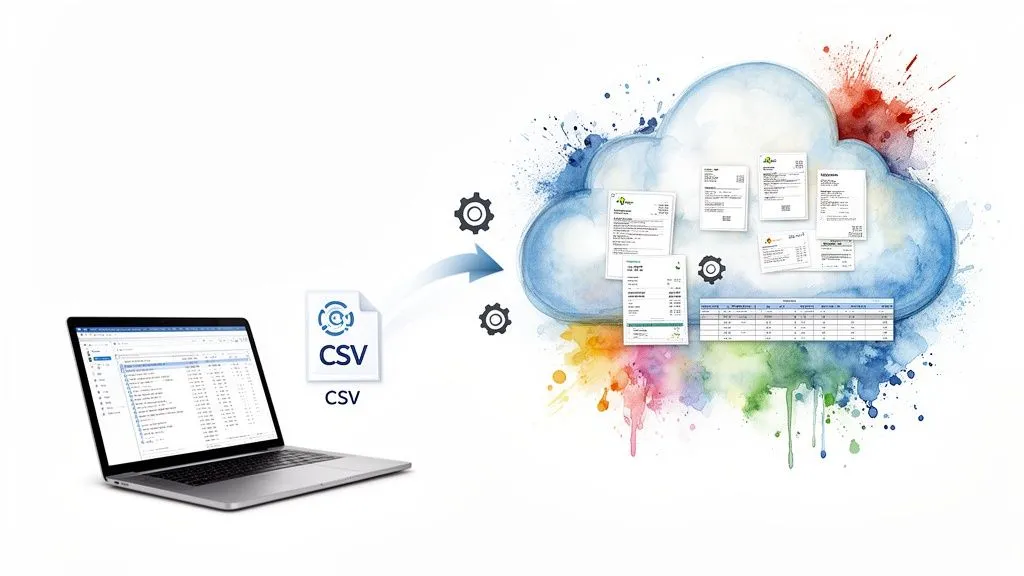
Now that your CSV file is clean and well structured, it’s time to put it to work. Concretely, how do you go from this raw data table to accurate, usable accounting? Two main approaches exist, each with its own advantages.
The first, most accessible one, is to import your file into a good old spreadsheet like Excel or Google Sheets. It’s a perfect solution for a quick analysis, building a few clear charts, or simply handing a clear overview to your accountant.
A small pro tip to avoid unpleasant surprises: don’t open the CSV file directly. Instead, use the dedicated import function. In Excel, for example, go to the Data tab, then click From Text/CSV. This gives you control over delimiters, encoding, and column formatting. It’s the best way to make sure your data displays correctly the first time.
Stepping up a gear with specialized software
The second method is the one that truly changes the game day to day for an online seller. It involves importing your data directly into accounting software built for the specifics of online selling.
A spreadsheet only stores information, without understanding it. A specialized tool like Bizyness actually interprets your file. It doesn’t just line up rows and columns; it analyzes each transaction, applies the correct VAT rules, and generates compliant accounting entries and invoices for you.
The difference is fundamental. You’re no longer simply copying and pasting data, you’re automating an entire chunk of your accounting.
- Massive time savings: no more manual entry of accounting records. Everything is generated in a few clicks after import.
- Rock-solid reliability: the software applies accounting rules systematically, drastically reducing the risk of human error.
- Guaranteed compliance: invoices and entries are generated in line with French tax rules, without you having to worry about it.
Importing into a spreadsheet is like using a road map. It’s reliable, but you’re the one doing the whole journey. Importing into specialized software is like a GPS: you enter the destination (your CSV file), and it calculates the best accounting route for you.
Full automation: the ultimate step with integrations
What if you did away with manual CSV export entirely? That’s the next level up. Modern solutions like Bizyness offer direct integrations with major e-commerce platforms. The software connects directly to your Shopify store or Stripe account and retrieves data in real time via an API connection.
This fully automated flow makes real sense in a context of growth. In 2023, French exports grew by 2.5% to reach €614.7 billion. For online sellers expanding internationally, this automation becomes the key to turning strong commercial performance into flawless, compliant accounting management, without spending your nights on it.
Automation eliminates the risk of manual errors and guarantees always up-to-date accounting, with virtually no effort. Take a look at the various integrations available to see how your sales tools can sync directly. It’s the promise of total peace of mind.
Solving the most common headaches with your CSV exports
Even with some experience, exporting a CSV file can quickly turn into a headache. A date in an unusual format, a number your spreadsheet reads as text, rows that duplicate for no apparent reason… and there goes your accounting import, spiraling out of control.
Fortunately, these are well-known problems. Once you know where to look, the solution is quick to find.
One of the most common issues is the date format. Your e-commerce platform might export dates in US format (MM/DD/YYYY), while your accounting software expects the standard format your country uses. The result? Dates that don’t make sense, or worse, swapped months and days that throw off your entire analysis. The fix is to explicitly set the format of the “date” column when you import the file into Excel or Google Sheets.
Another classic issue: numbers that aren’t recognized as numbers. If your amounts contain a symbol (€) or use a comma as the decimal separator, your spreadsheet may interpret them as plain text. The trick here is to use the “Find and Replace” function to clean things up: remove the currency symbols and change commas to periods (or the other way around, depending on what your software expects).
Spotting issues hidden within the data
Sometimes the errors are trickier than a simple formatting problem. They can hide within the data itself and threaten the reliability of your accounting.
Here are a few situations you’ve probably already run into:
- The totals don’t match. You export your month’s sales, yet the total shown in your CSV doesn’t line up with your Shopify dashboard. This is often a matter of filters: did you remember to include refunds or cancelled orders? For an accurate overview, everything needs to be accounted for.
- Duplicate rows appear. This is typical when an export lists several events for a single order (payment, then shipping, etc.). Your spreadsheet has a handy function for this: “Remove duplicates.” Just run it based on a column containing a unique identifier, like the order number.
- Crucial information is missing. Essential columns, like VAT, are sometimes empty. Generally, this is a sign that your tax settings on your sales platform aren’t quite right. A quick check of your settings upstream can save you hours of work.
Each of these errors requires a manual fix. It’s slow, tedious, and easy to get wrong. To guarantee full compliance, particularly with the French Accounting Entries File (FEC), precision isn’t optional. To go further, feel free to check out our complete guide on preparing your Accounting Entries File.
The real time saver isn’t becoming a champion at fixing CSV files. It’s never having to fix them again. That’s where API-driven automation changes everything.
A platform like Bizyness, for example, connects directly to your sales tools via their APIs. It doesn’t just download a raw file. It fetches the data in a structured, reliable way, which avoids nearly all of these classic errors. By interpreting the data flows directly, the tool ensures every amount, every date, and every tax figure is handled correctly. You’re finally free from the chore of troubleshooting files.
The questions everyone asks about CSV export
Even with the best tutorials, there are always a few questions left hanging once you’re actually knee-deep in the process. I’ve gathered here the questions that come up most often among online sellers, to save you time.
What’s really the best format for exporting my data?
Without a doubt, CSV (Comma-Separated Values) remains king. It’s the universal standard par excellence. Its strength? It’s lightweight, simple, and nearly every accounting tool or spreadsheet (like Excel or Google Sheets) can read it without any trouble.
That said, watch out: to be compliant with the French tax authorities, the official format is the Accounting Entries File (FEC). The good news is that a clean, well-structured CSV file is the best foundation for generating a compliant FEC.
Help, my CSV file is full of weird characters!
Ah, the classic problem! You open your file and the “é” characters have turned into “é.” It’s a simple but very common encoding issue. Your e-commerce platform exports data in UTF-8 (the standard on the web), but your spreadsheet software, especially older versions of Excel, tries to read it with a different encoding.
Fixing it is very simple. When importing your file into Excel, don’t open the CSV with a double-click. Go through the “Data” tab, then “From Text/CSV.” A window will open, and in the “File Origin” dropdown menu, simply choose “65001: Unicode (UTF-8).” And there you go, all your accents and symbols will reappear as if by magic.
Can you really automate everything?
Yes, and it’s actually the best thing you can do for your peace of mind. No more manual downloads, no more risky copy-pasting, no more risk of error. The most reliable solution is to use tools that connect directly to your sales platforms via their API.
Solutions like Bizyness do this very well: they connect to Shopify, Stripe, or Amazon to retrieve sales in real time. The data is then processed, the correct accounting rules are applied, and entries are generated automatically. This kind of flow makes manual cleaning and mapping steps completely unnecessary and guarantees your accounting stays accurate and up to date at all times.
Don’t let accounting hold back your growth any longer. With Bizyness, every sale is turned into a clean, compliant accounting entry, without you having to lift a finger. Discover how to simplify your financial management at https://www.bizyness.fr.
